Les articles d'aide existent en allemand et en anglais. Vous les lisez ici en anglais.
Rapports, coûts et export
How do I connect Google Ads or Meta?
Under “Data connections”, click “Set up” on the Google Ads or Meta card, then “Sign in with Google” or “Sign in with Meta”. You sign in at the platform, share the ad account and then pick it from a list in Metrunio. There is no token to copy. Costs arrive in test mode first; “Apply costs” puts them into the reports.
How do I sign in with my ad account in Metrunio?
For Google Ads and Meta you need no token. You sign in at the platform, and Metrunio receives an encrypted access from it to read costs and, if you set it up, to report orders or leads. Both live on the platform’s page: “Receive costs” at the top, “Send conversions” below.
Note
Receiving costs is available from the Pro plan, sending conversions from Growth. Connecting is for the Admin role. The Google or Facebook account you sign in with needs access to the ad account.
Connect Google Ads
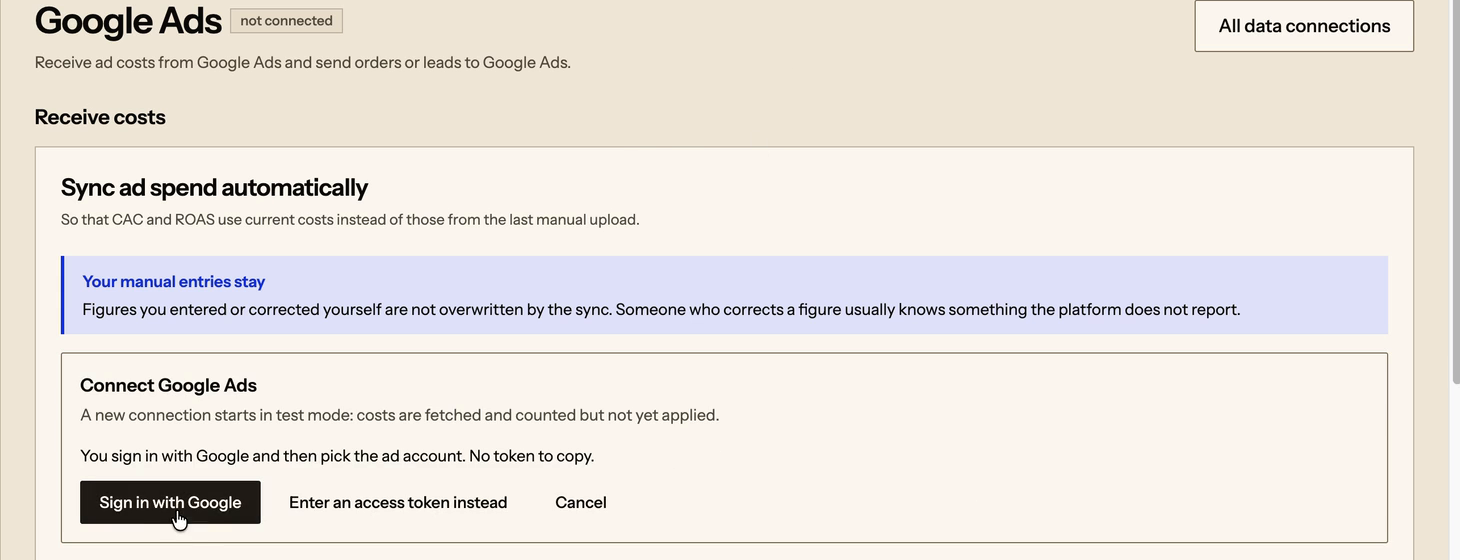
- 01Open “Data connections” and click “Set up” on the “Google Ads” card. In the “Receive costs” section, click “Sign in with Google”.
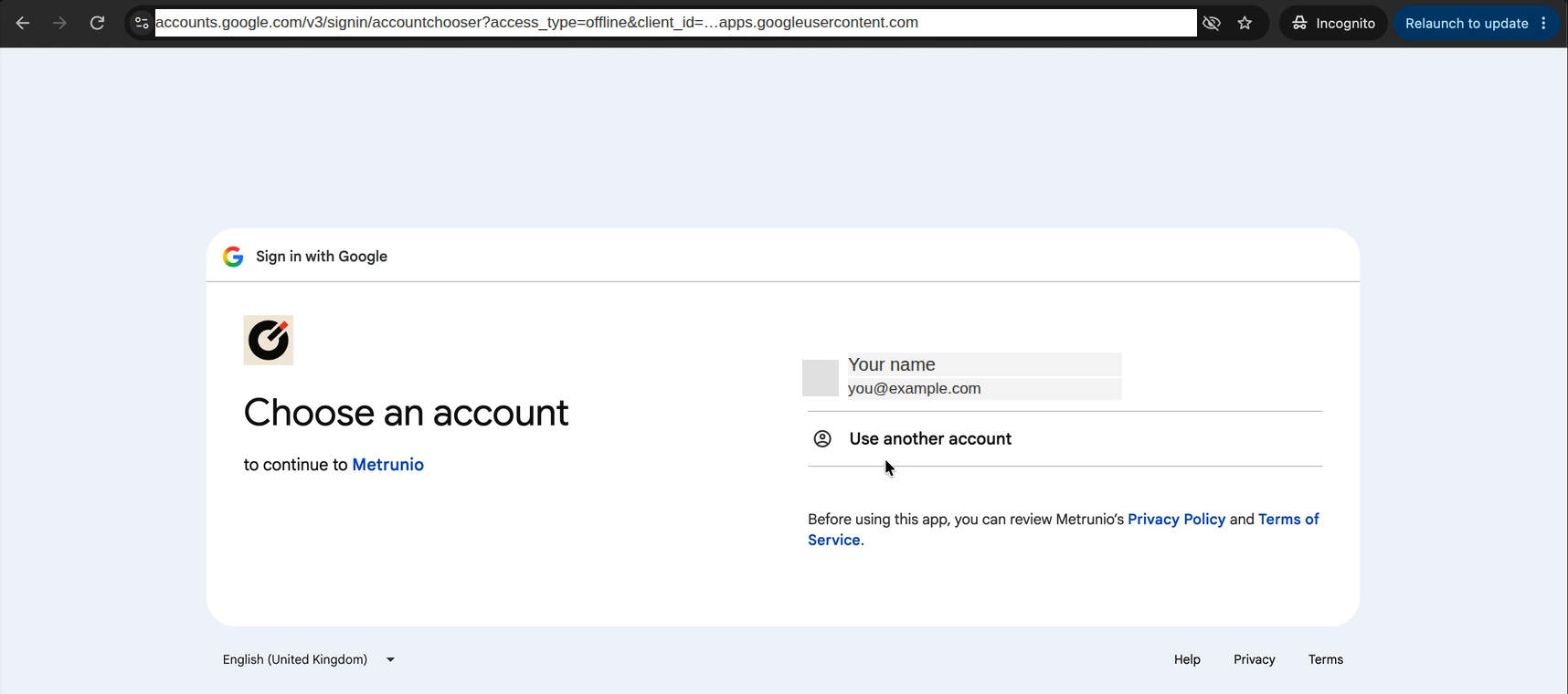
- 02Google shows your accounts. Pick the one you use for Google Ads.
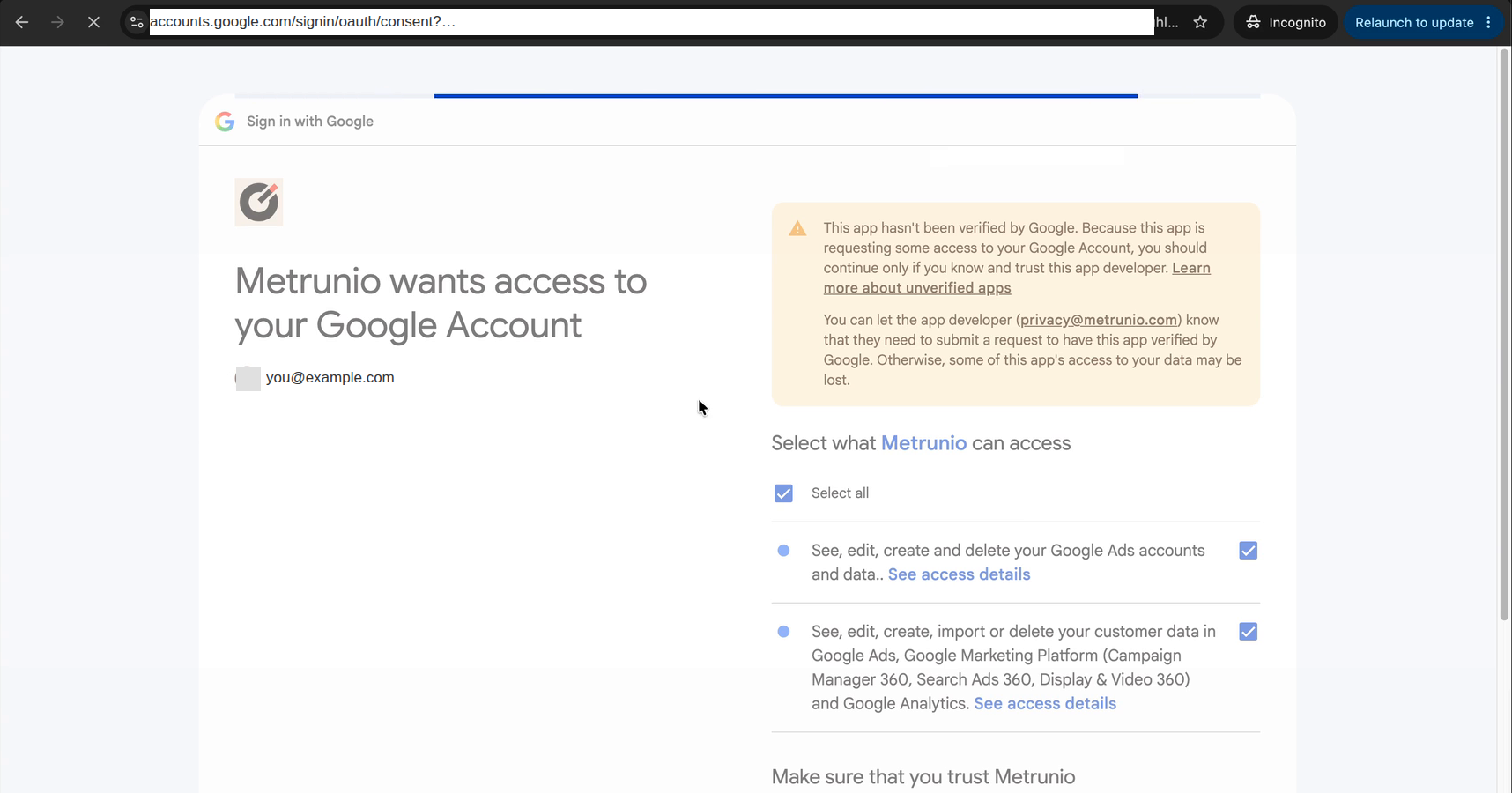
- 03Google lists what Metrunio may do, and you confirm with “Continue”. While Google is still reviewing our app, the warning “Google hasn’t verified this app” comes first; click “Advanced” and “Go to Metrunio”.
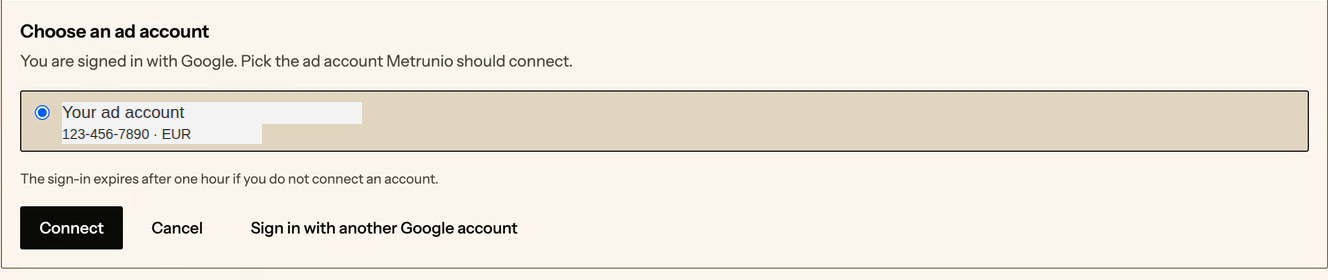
- 04Back in Metrunio, the list of your ad accounts shows name, customer ID and currency. Pick one and click “Connect”. Manager accounts are not listed, only accounts with campaigns.
Which permissions Google names and what Metrunio does with them
Google describes the first permission as “See, edit, create and delete your Google Ads accounts and data”. Google has no read-only permission for Google Ads, which is why it reads like that. Metrunio only reads with it: cost, impressions and clicks per campaign and day. The second permission belongs to the Data Manager API, and Metrunio needs it only when you send orders or leads to Google Ads. Metrunio never changes campaigns, ads, bids or budgets, with either permission.
Connect Meta
- 01Open “Data connections” and click “Set up” on the “Meta (Facebook, Instagram)” card. In the “Receive costs” section, click “Sign in with Meta”.
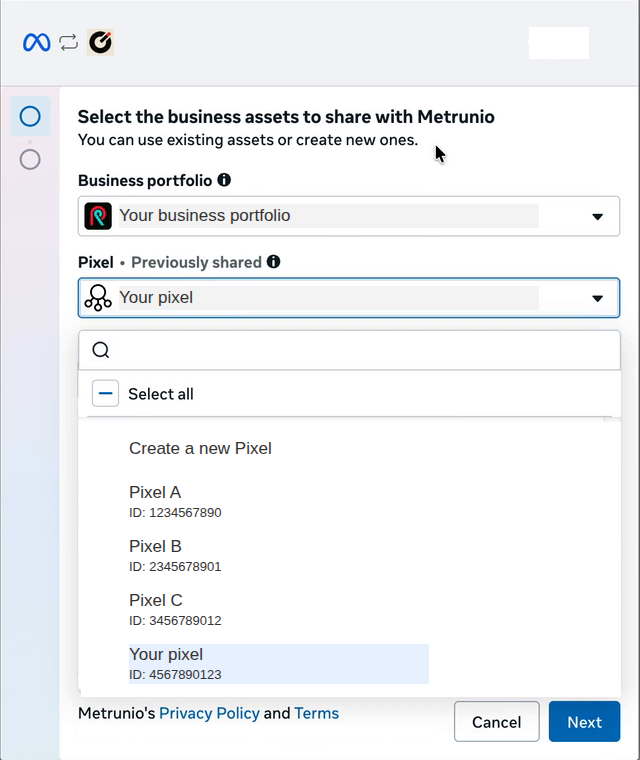
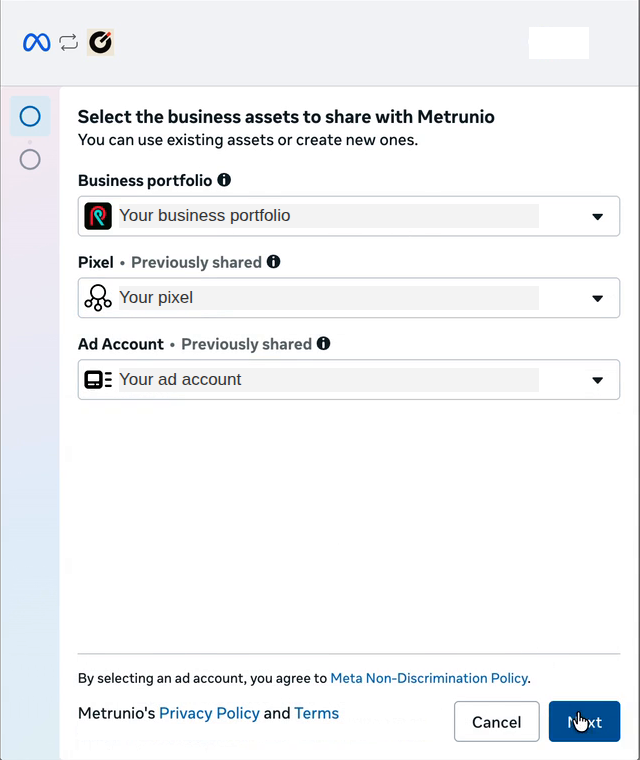
- 02Facebook opens the “Facebook Login for Business” dialog. Pick the business portfolio that owns your ad account. If you have several, take the one the ad account belongs to, not a portfolio that only sees it as a partner.
- 03Pick the pixel (dataset) Metrunio should later report orders or leads to, and the ad account. Both are required, even if you only want costs for now. Click “Next” and confirm the permissions.
- 04Back in Metrunio, the list shows the ad accounts you shared. Pick one and click “Connect”.
No ad account in the list after signing in
Then the sign-in shared no ad account. Usually the business portfolio is the reason: the ad account belongs to a different portfolio than the one you picked. Click “Sign in with Meta again” and pick the portfolio that owns the ad account in the dialog. If the account is not there either, your Facebook account lacks access to it in Business Manager.
Apply costs
A new connection starts in test mode: Metrunio fetches the costs a few minutes after connecting, counts the rows and shows which platform campaigns match which campaign in Metrunio. They are not in the reports yet. If the row count looks right, click “Apply costs” on the card. From then on Metrunio fetches costs about every six hours and writes them into the reports, for example under “Channels & campaigns”.

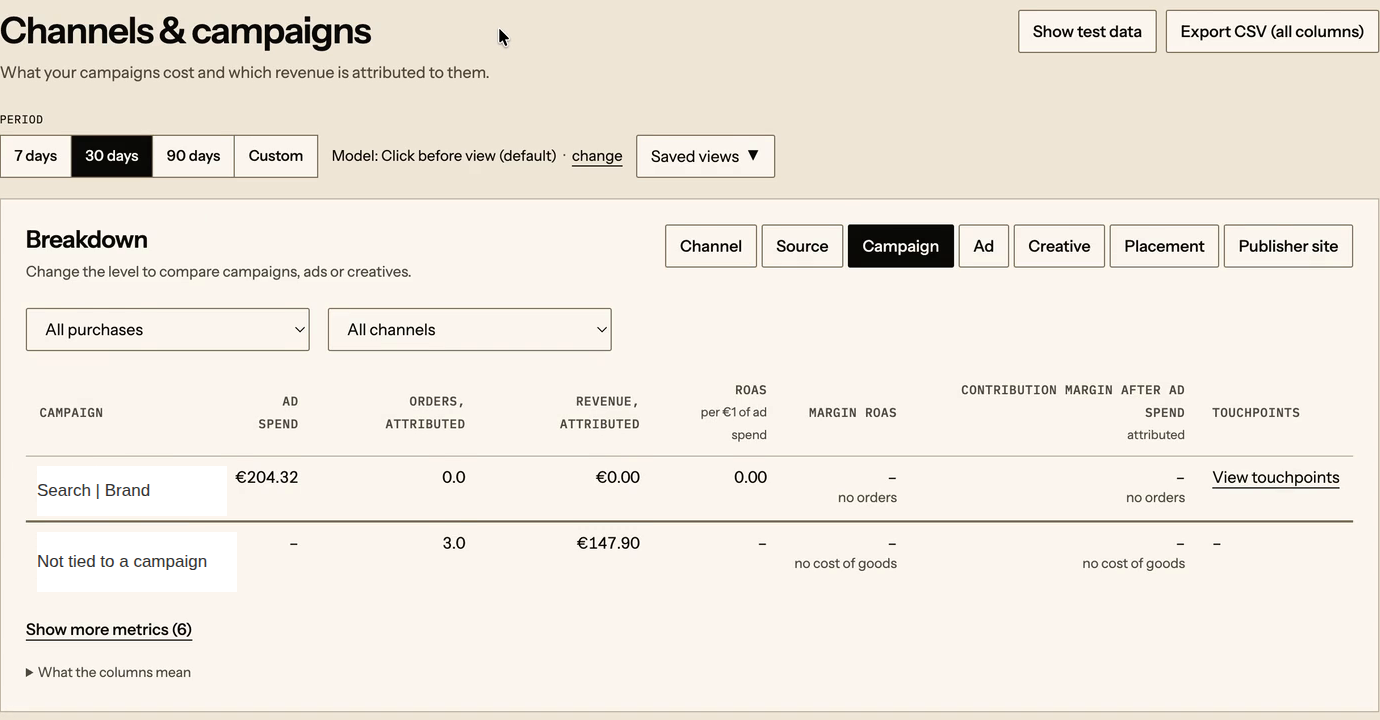
Campaigns that match no campaign in Metrunio are listed on the card under “Unmatched campaigns”. There you assign or create them; how that works is in “How do I sync ad spend automatically?”.
Send conversions
If the platform should learn which orders or leads followed its clicks, set up a destination on the same page in the “Send conversions” section. You do not need to sign in again: “Use existing sign-in” takes the access from the cost sync.
- Google Ads: you pick the ad account and enter the ID of the conversion action Metrunio reports to. It is in Google Ads under “Goals → Conversions” on the action, which must be of type “Import from clicks”.
- Meta: you pick the pixel from the list your sign-in shared and, for test mode, enter the test event code from Events Manager. Reports then arrive there under “Test events” and are not counted.
- Both start in test mode. With “Go live” the platform records the reported orders or leads.
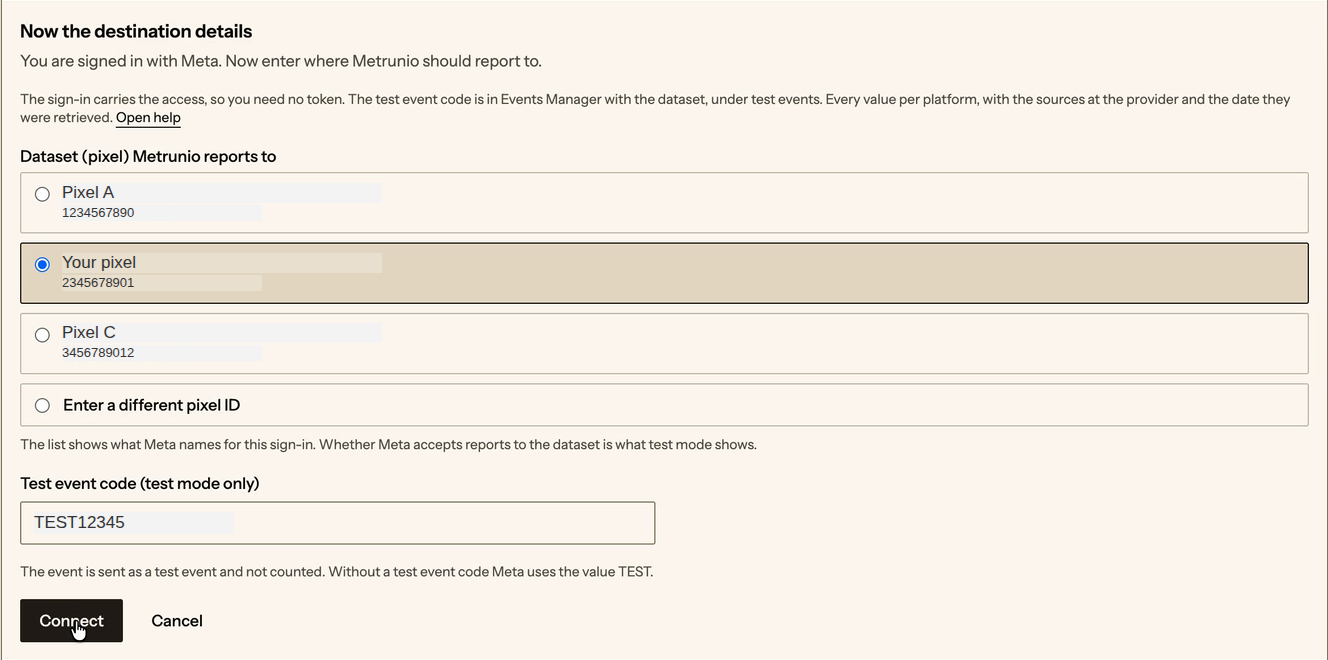

Only what consent allows and what has a click from the platform in its journey is reported. What is skipped and why is in “Can I send conversions to ad platforms?”.
Switch account and disconnect
- Different account: “Edit” on the card, then “Pick an account from the existing sign-in”. You see the accounts your sign-in shares. If the one you want is missing, sign in again with “Sign in with another account”.
- Disconnect: “Disconnect” on the card deletes the stored access immediately. Costs already fetched stay; orders or leads already reported stay with the platform. Costs and conversions are disconnected separately.
- Revoke at the platform: if you remove Metrunio’s access in your Google account or under “Business integrations” at Facebook, the connection reports at the next fetch that the sign-in no longer applies, with a “Sign in again” button.
How long the sign-in lasts
- Google: indefinitely, as long as you do not revoke access and the connection is not unused for six months.
- Meta: indefinitely with “Facebook Login for Business”. If Meta names an expiry date at sign-in, it shows on the connection, and Metrunio warns 14 days ahead.
Note
TikTok, LinkedIn and Microsoft Advertising have no sign-in; there you enter an access token. Where the values live is in “Where do I get the advertising platforms’ credentials?”. That article also explains how to enter a token for Google Ads and Meta instead of signing in.
Dernière vérification le 28 oct. 2026
Dans le portail client
Également demandé
- Sign in with Google
- Sign in with Meta
- Connect Google Ads
- Connect a Meta ad account
- Connect Facebook Ads to Metrunio
- Which business portfolio do I pick at Meta?
- Which pixel do I pick at Meta?
- Why is there no ad account after signing in?
- What does “Google hasn’t verified this app” mean?
- Which permissions does Metrunio get for Google Ads?
- Why are the costs not in the report yet?
- What is test mode for cost sync?
- Send conversions to Google Ads
- Send conversions to Meta
- Disconnect an ad account
- Reuse the sign-in for pushback
- Pick a different ad account
Articles connexes
- How do I sync ad spend automatically?
Can Metrunio fetch cost directly from Meta and Google Ads?
Under “Data connections” you click “Set up” on the platform’s card under “Ad platforms” and connect an ad account there, and Metrunio fetches daily cost per campaign on its own, first a few minutes after connecting, then about every six hours and retroactively, because the platforms revise their figures. “Fetch now” on the card requests an extra fetch in between. For Google Ads and Meta you sign in; for TikTok, LinkedIn and Microsoft Advertising you enter an access token, which is stored encrypted.
- Can I send conversions back to the advertising platforms?
How does conversion pushback work?
From the Growth plan, conversions go back to Meta, Google Ads, TikTok, LinkedIn and Microsoft Advertising. Matching happens exclusively through each platform’s click identifier: fbclid, gclid, ttclid, li_fat_id or msclkid. Conversions without a matching click are skipped with a stated reason. Per destination you choose whether purchases are reported with the revenue or the contribution margin, and whether only purchases by new customers go out.
- Where do I get the advertising platforms’ credentials?
Which values does Metrunio need per platform, and where do they live?
With Google Ads and Meta you sign in with your account at the platform (“Sign in with Google”, “Sign in with Meta”) and then pick the ad account or pixel from a list; no token is needed there. For TikTok, LinkedIn and Microsoft Advertising you enter an access token and one to four identifiers from your ad account. This page says in advance where each value lives.
- How do I structure channels and campaigns?
Which levels exist, and how deep do I need to model them?
The structure has five levels: channel, campaign, ad group, ad, creative. Channel and campaign are required; you only create the deeper levels if you want to evaluate at that level.